Cloud storage app for Apple TV · Google TV
Press play on your cloud photos.
dosya on your TV shows every photo and video in your dosya cloud storage. Sign in with your phone, browse with the remote, and pick up any video where you stopped.

 Fire TV Soon
- Sign in with a QR code
- View-only on the TV
- 40 languages
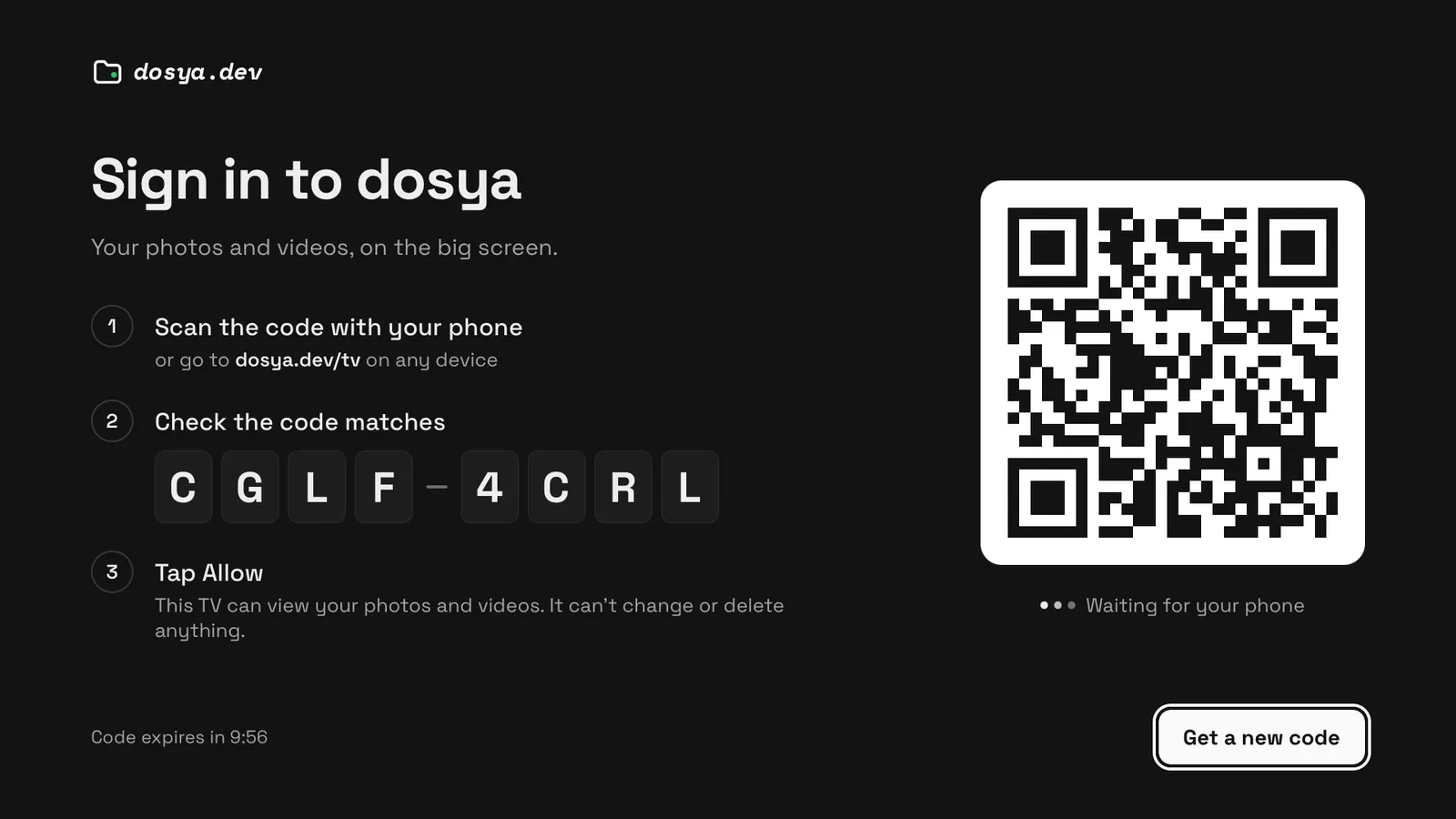
Sign in with your phone
Scan the code on the TV and tap Allow. No password typed with a remote.
Everything is one press away.
Move through photos
Left and right step through a folder, and the next photo slides in from the side.
See the details
Down shows when a photo was taken, its size and its folder. Up hides it again.
Start a slideshow
Play on the remote turns the folder you are in into a slideshow.
Switch workspace
Move left to open the menu: sections, places and every workspace you belong to.
Search by saying it
Say “beach at sunset” and find it. Smart Search works when it is part of your dosya account.
Your language, your TV
dosya follows your TV's language, or pick another in Settings. Sign the TV out there too.
Cloud storage with its own TV app.
Most cloud storage stops at the phone and the browser, so getting photos onto the TV means casting or AirPlay from your phone. dosya has its own app on Apple TV and Google TV. The photos and videos you back up from your phone are on the TV, with your phone free.
- No casting, no AirPlay. The TV loads your photos and videos from your dosya cloud storage itself.
- Your folders, as you made them. Photos, Videos, Folders and Favourites, the same as in the dosya app.
- Videos from the original file. They play as you uploaded them, iPhone videos included, and photos open full screen.
- Every workspace. Personal, team and shared workspaces, switched from the menu.
Sign in without a password.
- Scan the code on the TV with your phone, or go to dosya.dev/tv on any device.
- Check the code matches the eight characters on the TV.
- Tap Allow. The TV signs in by itself.
The TV can view your photos and videos. It can't change or delete anything, and password-locked folders stay off the TV.
Find a photo by what is in it.
Type or say what you remember, like "dog in the snow", and Smart Search finds the photos and videos that match. It works when Smart Search is part of your dosya account.
How Smart Search works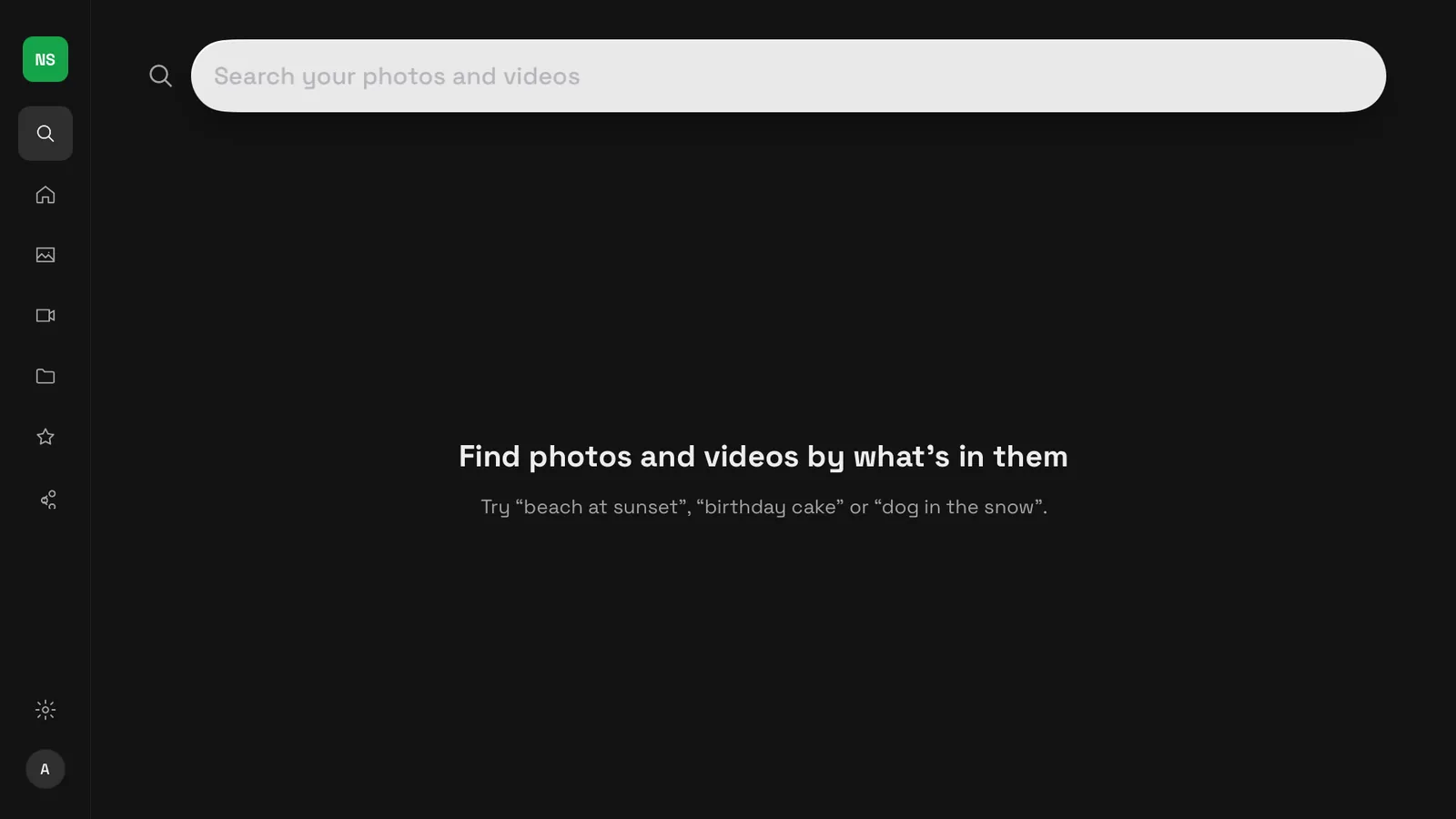
Questions people ask.
Can I watch my cloud photos on Apple TV without AirPlay?
Yes. Install dosya from the App Store on your Apple TV and sign in with your phone. The Apple TV then loads the photos and videos in your dosya cloud storage itself, so you don't need AirPlay or your phone after signing in.
Is there a cloud storage app for Google TV?
Yes. dosya is on Google Play for Google TV and Android TV. It shows the photos and videos in your dosya cloud storage, with folders, favourites, slideshows and videos that resume where you stopped.
Which TVs does it work on?
Apple TV HD and Apple TV 4K with tvOS 17 or later, and TVs and streamers with Google TV or Android TV: Sony, TCL, Philips and Hisense TVs, Chromecast with Google TV, Google TV Streamer and Nvidia Shield. A Fire TV version is coming.
How do I sign in without typing a password?
The TV shows a QR code and an eight-character code. Scan the QR code with your phone, or go to dosya.dev/tv on any device, check that the codes match and tap Allow. The TV signs in by itself.
Can someone on the sofa change or delete my files?
No. The TV gets view-only access: it can show your photos and videos and nothing else. Password-locked folders do not appear on the TV.
How do I sign the TV out?
In Settings on the TV, or from your phone or computer in your dosya account's list of signed-in sessions. Signing out also clears what the TV saved.
Does it cost anything?
The TV app is free and works with any dosya account. Smart Search works when it is part of your account.
What you need.
Apple TV
- Apple TV HD or Apple TV 4K
- tvOS 17 or later
- On the App Store, the same app as dosya on iPhone
Google TV and Android TV
- TVs from Sony, TCL, Philips, Hisense and more
- Chromecast with Google TV, Google TV Streamer, Nvidia Shield
- On Google Play
Fire TV Soon
- Fire TV sticks and Fire TV sets
- Through the Amazon Appstore
And a dosya account, the one you use on your phone or computer. No account yet? Create one.