Publish from Lightroom. Get the picks back.
Turn a collection into a client gallery in one click. Your client marks favourites, and who picked what shows up in your catalog.
Free plug-in. Requires Lightroom Classic 10 or newer (desktop) on macOS or Windows. No account yet? Create one free


See it in action
From a collection in Lightroom Classic to a client gallery and back.
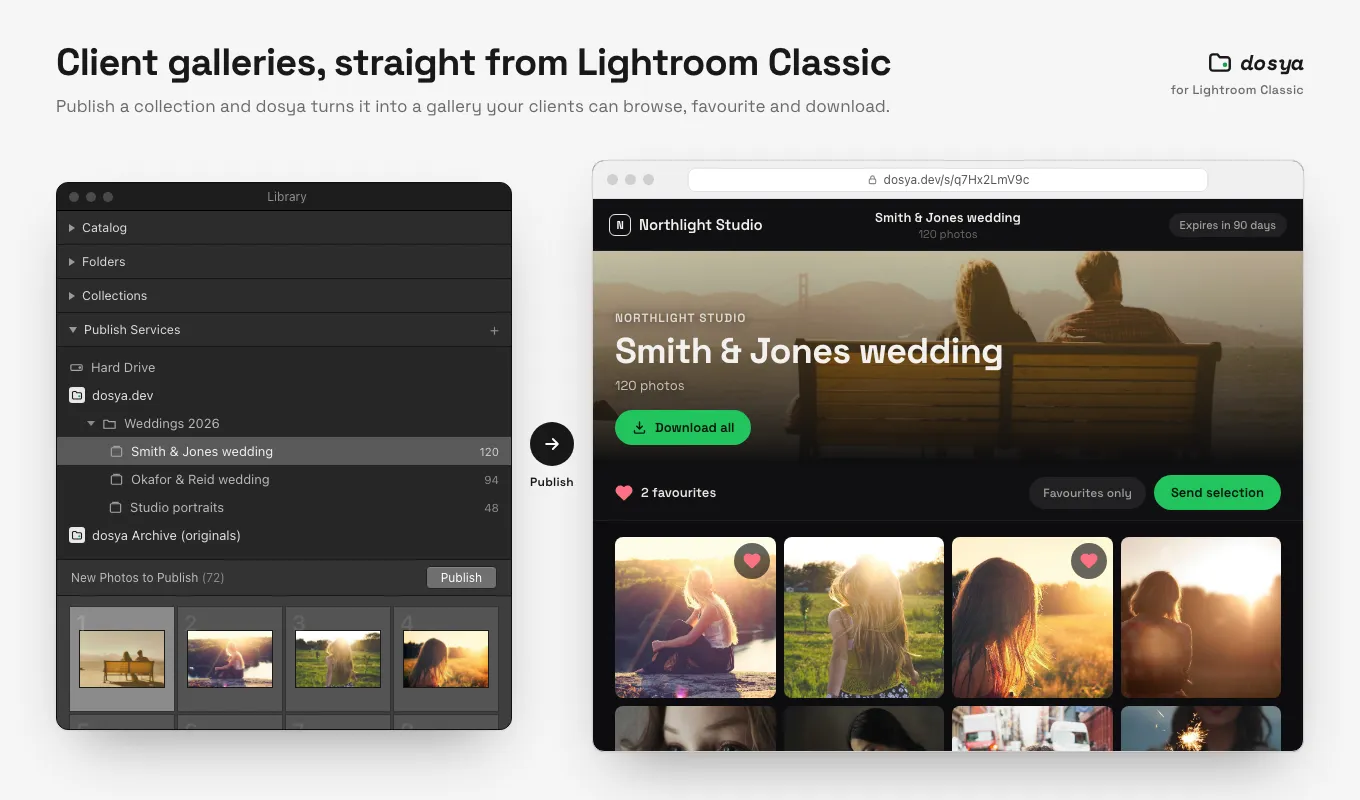
-
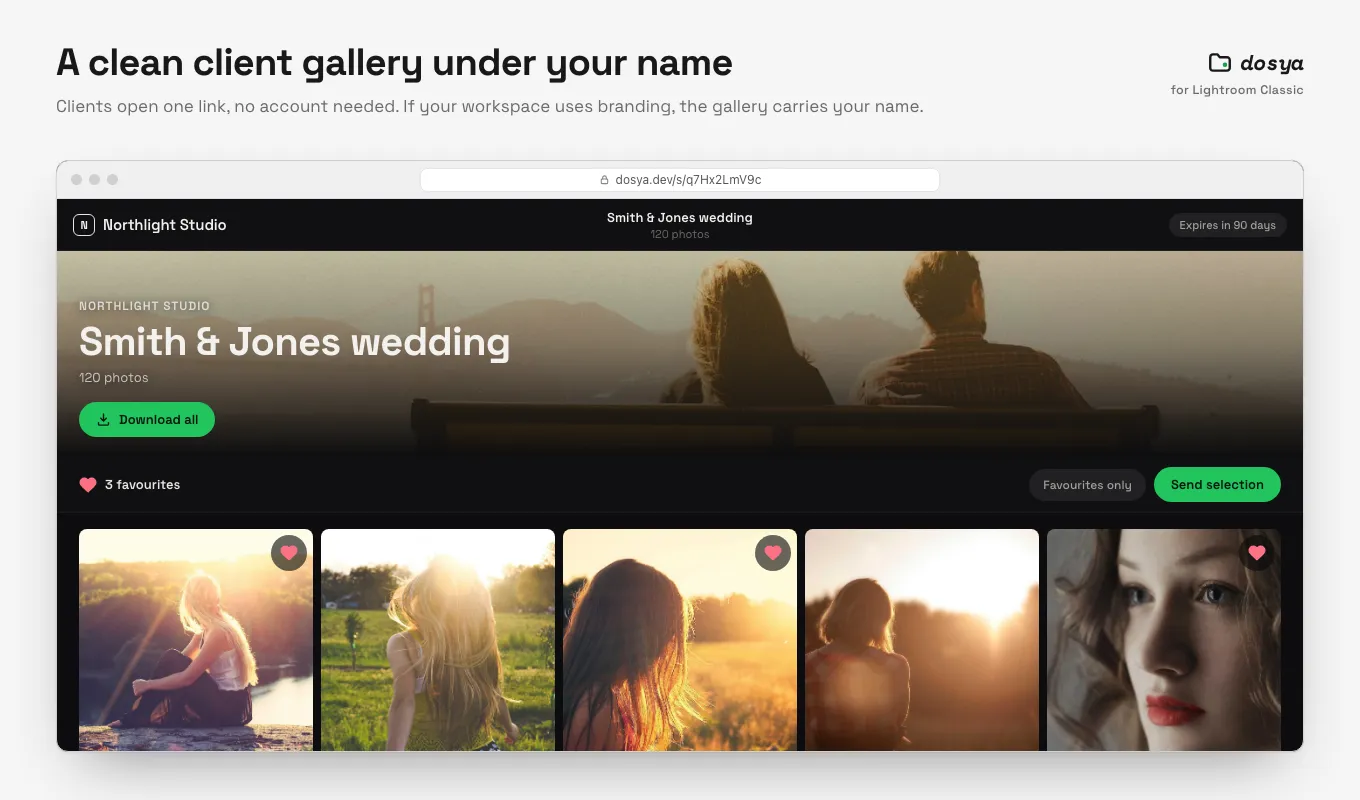
A clean gallery under your name. -
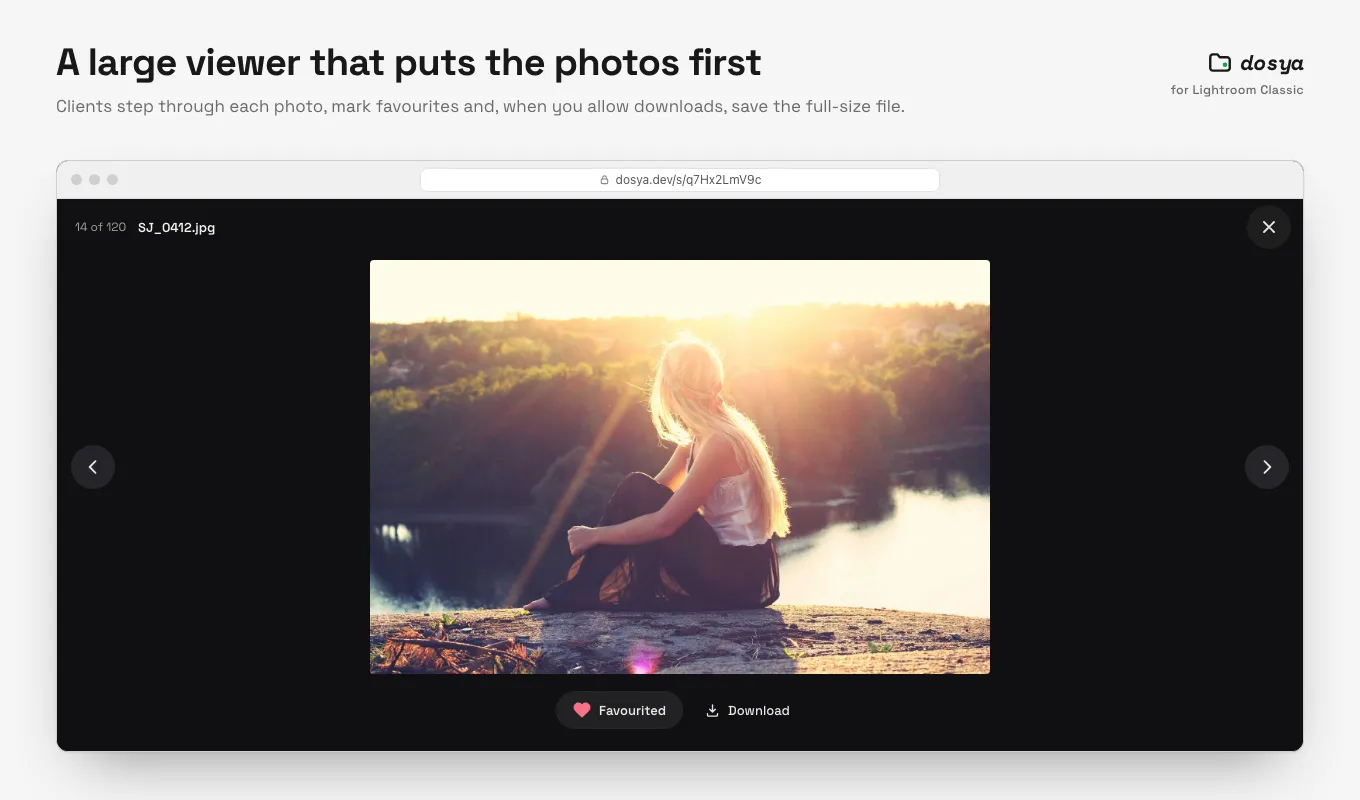
A full-size viewer for every photo. -
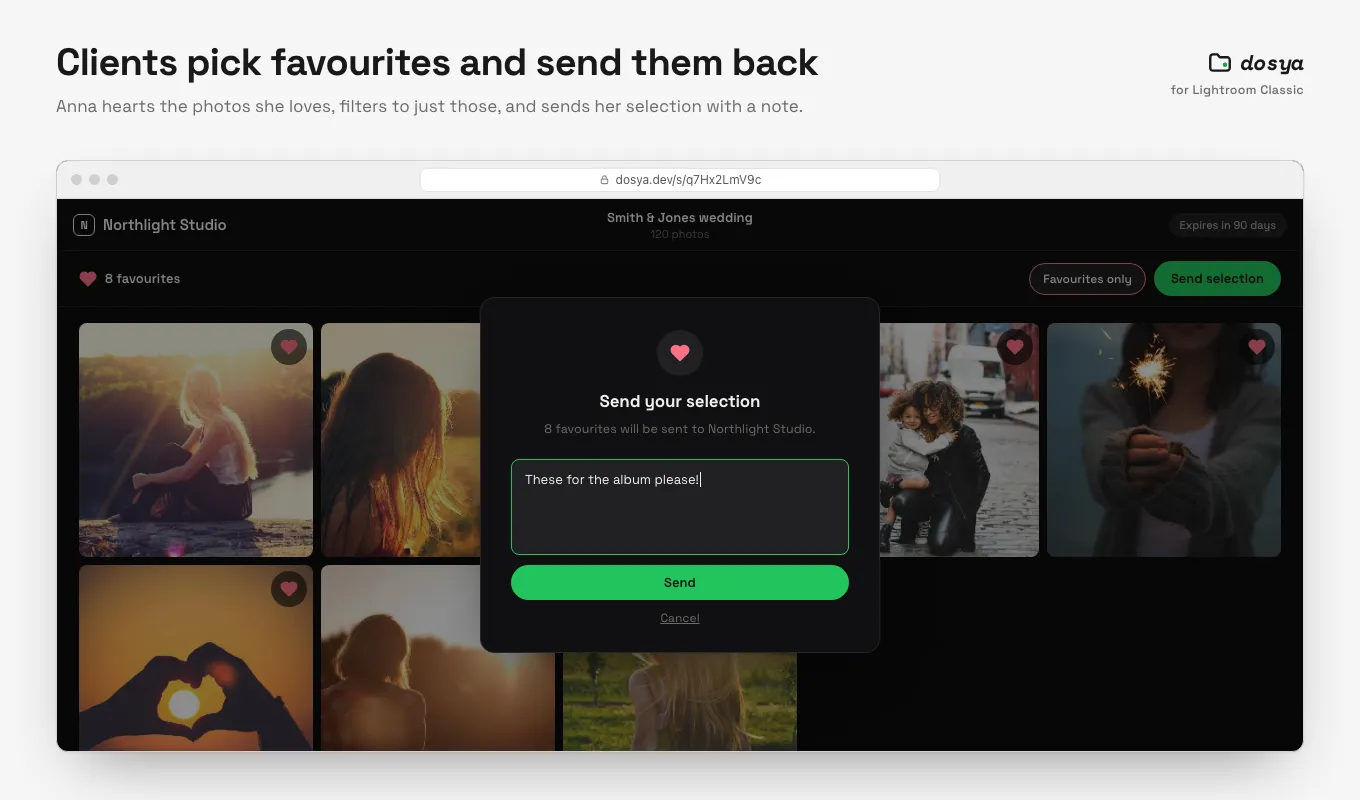
Clients send their selection with a note. -
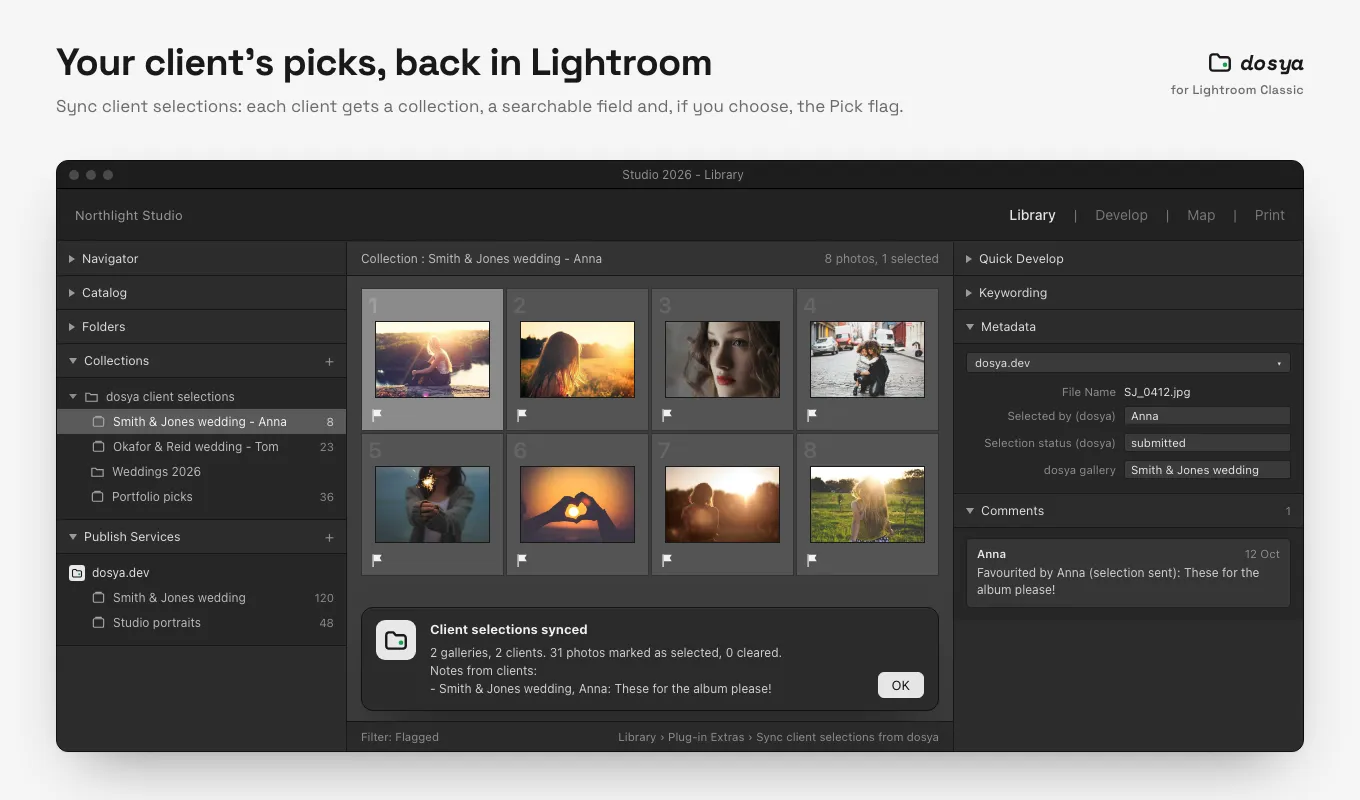
Picks come back into your catalog. -
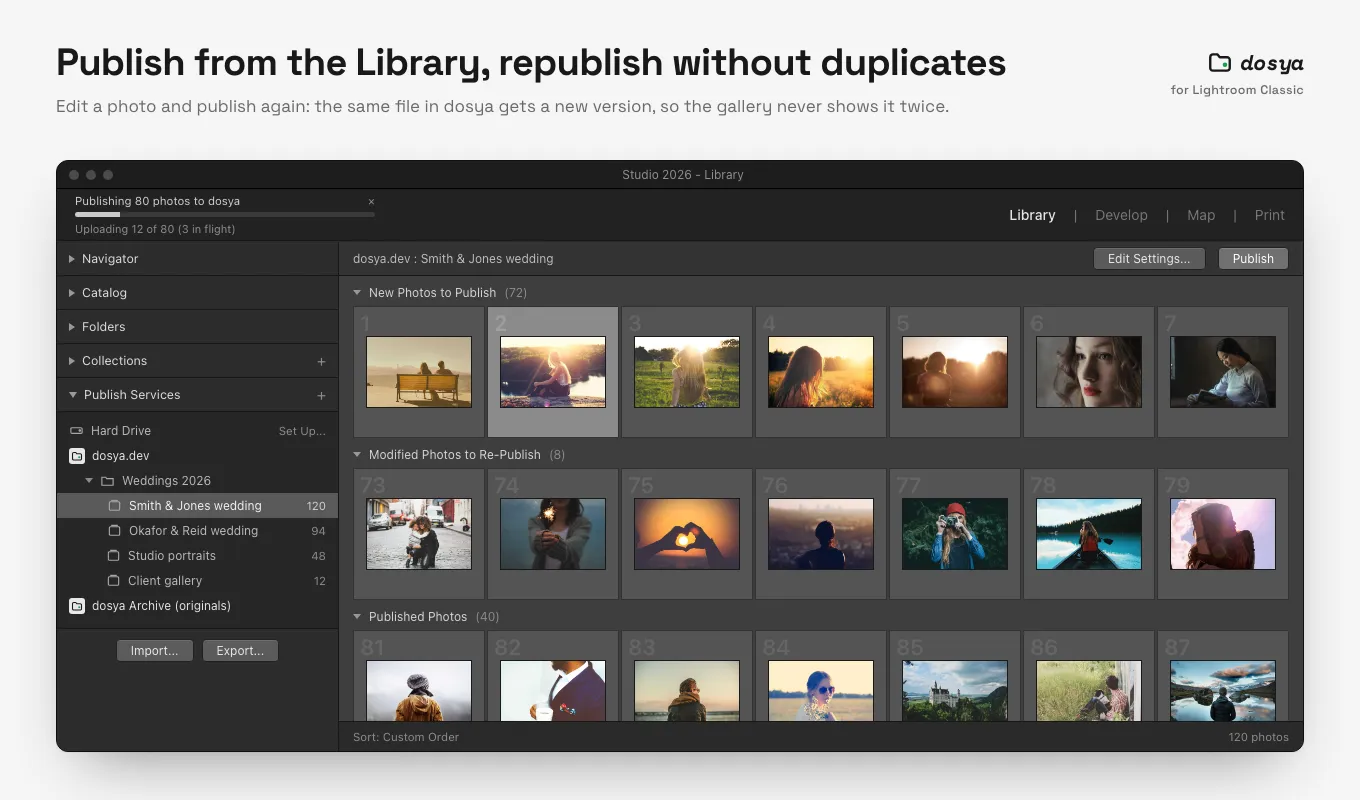
Republish edits without duplicates. -
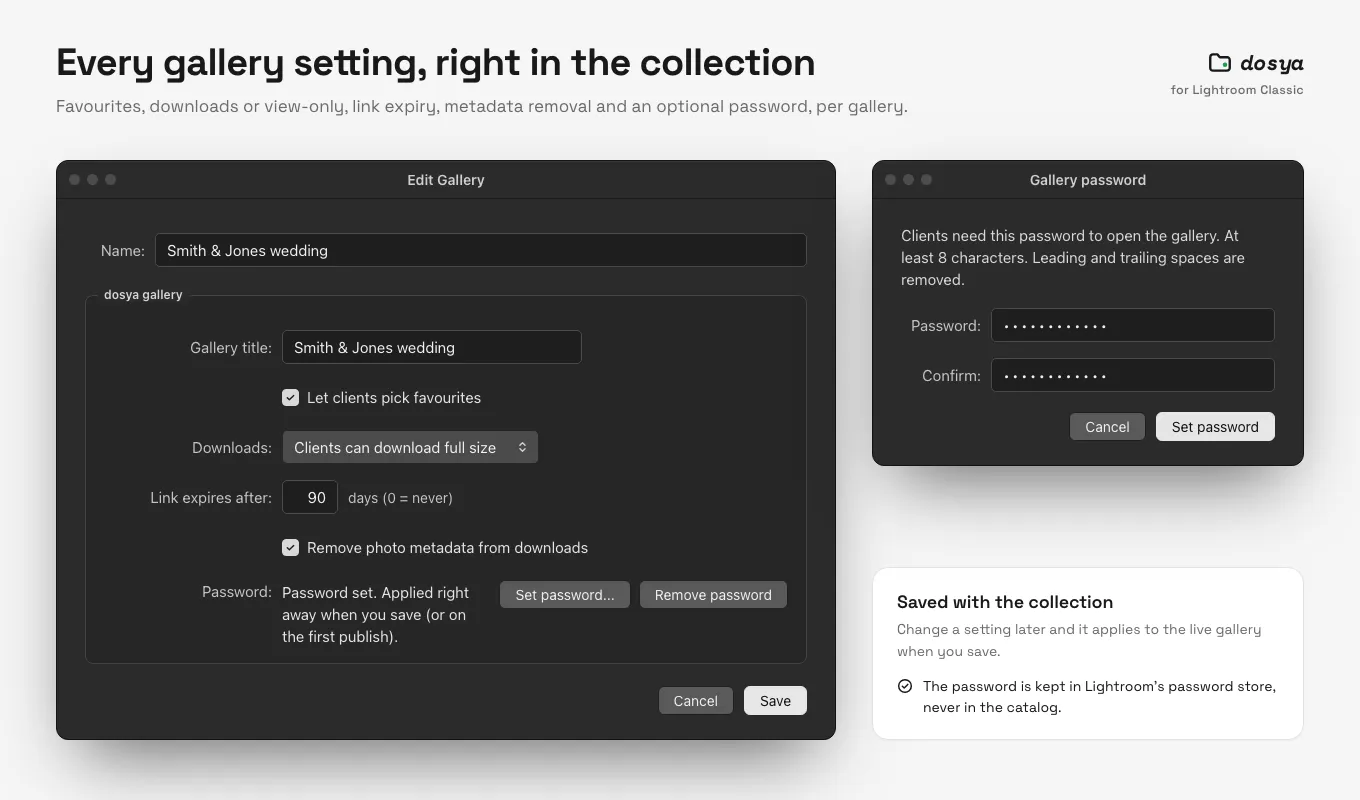
Password, expiry and download settings per gallery. -
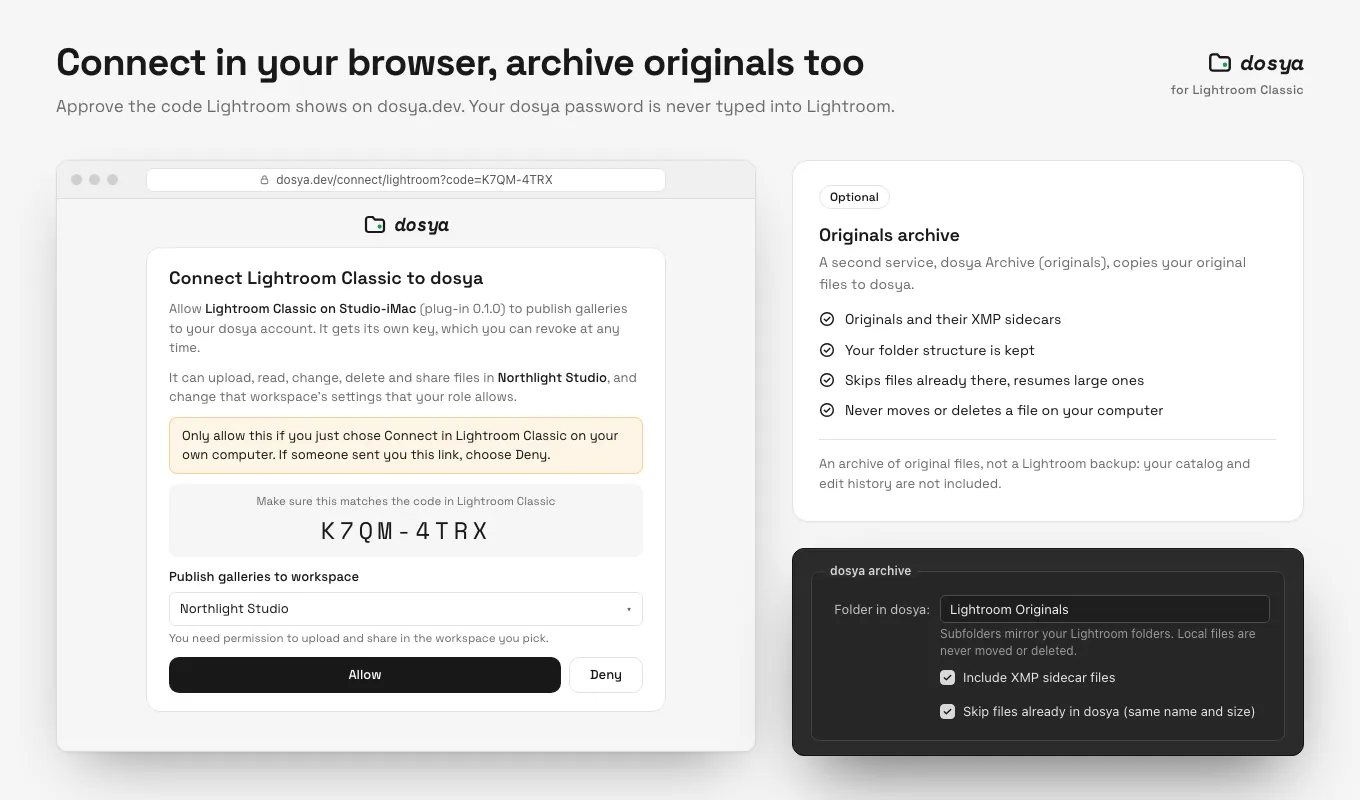
Connect once, archive originals if you want.
Lightroom Classic screens are illustrations of the plug-in's panels. Photos: Unsplash.
From collection to client picks
Five steps, most of them inside Lightroom. You approve the connection once in your browser.
- 1
Publish a collection
Add a dosya.dev publish service, drop photos into a published collection and click Publish. Each collection becomes a folder, and collection sets become the folders above it.
- 2
Share a branded gallery
Every collection gets a gallery link. Set a password, an expiry date, view-only or downloads, and whether your client can mark favourites. If your workspace uses branding, it applies.
- 3
Clients send their picks
Your client opens the link, enters a name and marks favourites, then sends the selection when they are done. No account needed on their side.
- 4
See the picks in Lightroom
Sync client selections from the Plug-in Extras menu. Who picked what lands in a searchable metadata field, each client gets a collection of their own, and the plug-in can set the Pick flag or a colour label for you. The Comments panel lists which clients favourited each photo, with the note they sent.
- 5
Republish without duplicates
Edit a photo and publish again. The same file in dosya.dev gets a new version, so the gallery never shows the photo twice.
An archive for your originals
A separate export service puts your original files in dosya.dev, next to the galleries.
- Uploads your original files and their XMP sidecars, keeping your folder structure.
- Skips originals that are already there with the same name and size, and sidecars that have not changed. Checks sizes after each upload.
- Large files resume where they stopped.
- Never moves or deletes a file on your computer.
It is an archive of original files, not a Lightroom backup. Your catalog, your edit history and restoring a catalog are not covered. It does not add to your Adobe storage and does not replace Adobe's cloud sync.
Installed in four steps
Requires Lightroom Classic 10 or newer, the desktop app. Lightroom (cloud) is not supported.
- 1 Download and unzip Download the zip and unzip it. You get a folder called dosya.lrplugin. Keep it somewhere permanent, because Lightroom runs the plug-in from there.
- 2 Add it to Lightroom Classic Open File, then Plug-in Manager, choose Add, and select dosya.lrplugin.
- 3 Connect your account In the Plug-in Manager, select dosya.dev and choose Connect. Your browser opens dosya.dev: sign in, pick the workspace for your galleries and approve the code shown in Lightroom. Your password is never typed into Lightroom.
- 4 Publish Set up the dosya.dev service in the Publish Services panel, create a published collection and click Publish.
Good to know
Which Lightroom does it work with?
It requires Lightroom Classic 10 or newer (the desktop app) on macOS or Windows. It is a Lua plug-in for Lightroom Classic, so Lightroom (cloud), the app that stores photos in Adobe's cloud, is not supported.
What does it cost?
The plug-in is free. It uses the plan and storage you already have on dosya.dev. On the Free plan, up to 5 share links can be active at a time and each lasts up to 7 days, and a gallery link counts as one. Paid plans add storage and lift those link limits.
What happens if I close Lightroom while photos are uploading?
Uploads run inside Lightroom, so closing it stops them. The photos stay in New Photos to Publish or Modified Photos to Re-Publish, and the next Publish picks up where it stopped.
What happens when I remove a photo from a published collection?
It disappears from the gallery and the file stays in dosya.dev. A service option can also move it to the trash, where you can still recover it. Deleting a whole published collection deletes nothing in dosya.dev, and the gallery stays online until you revoke its link.
Can my client download the photos?
You choose per gallery: view-only, or downloads. A password and an expiry date are optional on top of either.
How do I disconnect?
Choose Disconnect in the Plug-in Manager. It deletes the key in dosya.dev and forgets it in Lightroom. The key can also be revoked from your API keys page.
Deliver the next shoot from Lightroom
The plug-in uses your existing dosya.dev plan and storage. Start on the Free plan, and move up when your galleries need more room or longer links.
Adobe and Lightroom are trademarks of Adobe Inc. dosya.dev is not affiliated with or endorsed by Adobe.