Freelancing means running several small companies’ file systems at once.
Each client has their own assets, deadlines, preferred formats and people
who need access. Without a plan, the result is one sprawling Work folder,
a downloads directory full of attachments, and a nagging doubt about which
version you sent last.
This post is a setup for the solo operator with three, ten or thirty clients. It is not a team permissions guide - that one is here - but a way of keeping your own storage honest when you are the whole team.
The example below uses three fictional clients. It is a demonstration, not a customer story.
One home per client
The first rule: every client gets one top-level home, and nothing for that client lives anywhere else.
Clients/
  Northwind Bakery/
  Harbour Physio/
  Lumen Architects/
Internal/
  Admin/
  Portfolio/
  Templates/
Internal holds your own business: invoices, contracts, portfolio pieces,
reusable templates. Keeping it apart from client folders means you can share
a client’s whole home with them later without worrying about what else is in
there.
If your storage supports separate workspaces, a workspace per long-term client is even cleaner, because access, activity history and storage use are all scoped to that client automatically. On dosya.dev you can create workspaces and invite people per workspace, so a client’s team never sees another client’s name.
The same three folders in every project
Inside each client, one folder per project, and inside each project the same structure every time:
Northwind Bakery/
  2026-11 Winter menu/
    01-incoming/
    02-working/
    03-delivered/
01-incoming is everything the client sends: briefs, logos, copy, photos. Nothing in here gets edited. It is the record of what you received.
02-working is yours: drafts, source files, exports in progress.
03-delivered is exactly what the client received, in the form they received it. When someone asks in six months what you sent, this folder answers.
The numbered prefixes keep the order fixed in every file browser. The dated project name sorts projects chronologically and survives the client calling three different jobs “the website”.
Collect into incoming, deliver from delivered
The structure pays off when you connect it to how files move.
Incoming: instead of asking for attachments, send the client an upload
link that points at 01-incoming. They drop files in a browser without an
account, and the files land in the right place. Our
guide to receiving files from clients
covers the habit; the logo files guide
covers the most common first request.
Delivered: when work is final, copy it into 03-delivered and share a
link to that folder only. Set an expiry that suits the client, and a password
if the work is not yet public. Because the link points at a folder, adding a
late revision updates what the client sees without a new link.
You end up with one link in, one link out, and nothing in your inbox that matters.
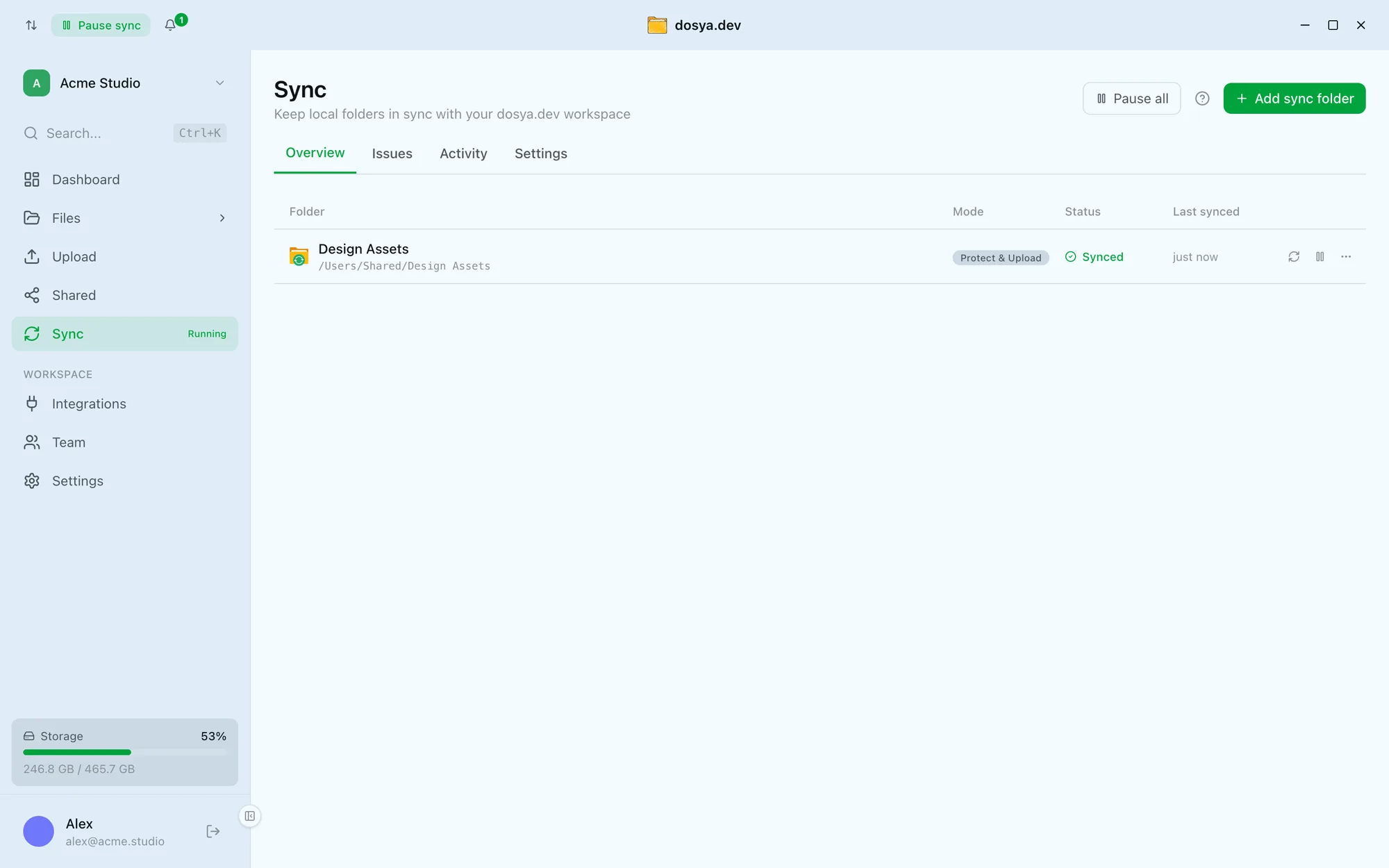
For work that lives on your own machine, the desktop app can sync each active project folder in the background, so the cloud copy is always current without manual uploads.
Decide who can see what
As a freelancer, access usually falls into three cases:
- Clients need to send files and receive deliveries. Upload links and share links cover both, without giving them access to your storage.
- Collaborators - a copywriter, a developer, a retoucher - need to work inside one project. Invite them to that client’s workspace or share that project’s folder, with the least access that lets them do the job.
- Nobody else. Your
Internalfolder is yours.
Review this list when a project ends. Old collaborators with lingering access to a client’s folder are the kind of loose end that becomes a problem long after everyone has forgotten it.
Estimate storage from your own projects
Freelance storage needs vary enormously. A copywriter’s year might fit in a few gigabytes; a video editor’s single project might not fit in a few hundred.
Measure one typical project, multiply by the projects you expect this year, and add your archive. Then add room to grow. If you work with photography or video, the specific planning guides for photographers and video editors go deeper.
When you compare plans, check the details that matter to client work: whether there is a per-file size limit, whether share links can carry passwords and expiry dates, and whether you can add storage without changing plan. Our pricing page lists every plan’s limits side by side.
Let integrations do the setup
The repetitive parts of this structure are easy to automate:
- New client, new folders. With Zapier, a new client in your CRM or a signed proposal can create the client folder, the project folders and an upload link in one go.
- Workflows you host yourself. The n8n node can upload files into the right folder and hand back a share link, for example filing every invoice your accounting tool generates.
- Client websites. If you build WordPress sites, the WordPress plug-in backs each site up on a schedule into its own folder, so the client’s site lives next to the rest of their project.
Close projects deliberately
The end of a project is where most freelance storage goes wrong. Files stay where they were, links stay live, and the next project starts on top.
A five-minute wrap-up keeps it tidy:
- Confirm
03-deliveredmatches what the client has. - Close the upload link and revoke or let expire any share links you no longer need.
- Remove collaborator access to the project.
- Decide what to keep from
02-working. Source files you might reuse stay; draft exports and duplicates go. - Note the retention rule you agreed with the client, if any, in a short text file in the project folder.
We cover the access side of this in more depth in closing access when a project ends.
Why it is worth the discipline
The setup costs a few minutes per project. In return you always know where a file is, you can hand a project to someone else without a tour, and the question “did we send them the final version?” has a one-click answer. For a business of one, that is a meaningful amount of saved attention.
Frequently asked questions
What is the best way for freelancers to organise client files?
Give each client its own top-level folder or workspace, and inside it one folder per project with the same subfolders every time: incoming, working and delivered. The repetition is the point, because you always know where a file should be.
Should I keep client files in my personal cloud storage?
Keep them separate from personal files, even if one account pays for both. A separate workspace or top-level folder per client makes sharing, handing over and eventually deleting client material deliberate rather than accidental.
How much cloud storage does a freelancer need?
Add up a typical project, multiply by the projects you take on in a year, and add what you already archive. Designers and writers often need far less than they expect, while video and photography freelancers can need several terabytes.