Photography storage rarely runs out in one dramatic moment. It grows a card at a time: a wedding here, a product shoot there, a folder of exports nobody deleted. Then one month the laptop drive is full, the external disk is full, and the question “how much cloud storage do I need?” arrives with a deadline attached.
This guide is about answering that question before the deadline. It works from your own numbers rather than a generic estimate, because a landscape photographer shooting 45-megapixel RAW and an event photographer shooting high-volume JPEG have almost nothing in common at the storage level.
Start with one real shoot
Pick a recent, typical job and measure it. Not the biggest one you have ever done, and not the smallest - the one you would call normal. Open the folder and note three numbers:
- Originals: the RAW files (or camera JPEGs) straight off the card, plus
sidecar files such as
.xmp. - Working files: layered PSDs or TIFFs, panorama merges, focus stacks, anything you built during editing.
- Exports: the JPEGs you delivered, at every size you delivered them.
Write the totals down. A worked example with round numbers, purely to show the arithmetic: a shoot of 1,200 RAW files at around 50 MB each is 60 GB of originals. Add 8 GB of working files and 6 GB of exports, and the job comes to roughly 74 GB.
That single number is worth more than any rule of thumb, because it already contains your camera, your editing habits and your delivery style.
One example shoot, by layer (GB)
Show as a table
| Item | GB |
|---|---|
| RAW originals | 60 GB |
| Working files | 8 GB |
| Exports | 6 GB |
Originals, working files and exports are not equal
The three layers have very different value, and that should shape where each one lives.
Originals are irreplaceable. If a RAW file is lost, the moment is gone. These deserve the most copies and at least one off-site.
Working files are expensive but recoverable. Losing a layered edit costs hours, not the shoot. Keep them with the project while it is active, then decide case by case whether they earn archive space.
Exports are cheap to regenerate from the originals and your catalogue edits. Keep the delivered set while a client might come back for it, but they are the first candidate to drop from long-term storage.
A lot of photographers discover that half their storage is exports in three sizes for jobs that closed years ago. Separating the layers in your folder structure makes that visible.
Estimate a year, not a month
Multiply your typical shoot by the number of jobs you expect in the next twelve months. Using the example above, 40 shoots at 74 GB is about 3 TB of new material in a year. Then add:
- The archive you already hold, measured, not guessed.
- Personal work, which tends to be forgotten in the plan and remembered on the drive.
- Headroom of about a third, because camera upgrades raise file sizes and a busy season is never the one you budgeted for.
If that total looks frightening, apply the layer rules first. Dropping old exports and stale working files from the archive often cuts the number more than any compression setting would. Our general guide to how much cloud storage you need walks through the same exercise for non-photography files.
Map where every copy lives
Capacity is half the plan. The other half is where each copy sits, so that a single failure never takes the only version with it.
A setup that works for many solo photographers:
- Card to local working drive. Edit from fast local storage; a catalogue on a network or cloud drive is a recipe for lag.
- Local backup drive. A second disk at the desk, updated daily.
- Off-site cloud copy of originals. Uploaded after ingest, ideally the same day, so a burglary or flood does not take both local copies.
- Delivered sets in the cloud, where clients collect them.
That is the 3-2-1 backup rule applied to a camera bag. One caution worth repeating: a folder that syncs is not, on its own, a backup. Sync faithfully copies a mistaken deletion to every device. If you use sync, make sure version history or a separate backup sits behind it - the difference is covered in backup vs sync.
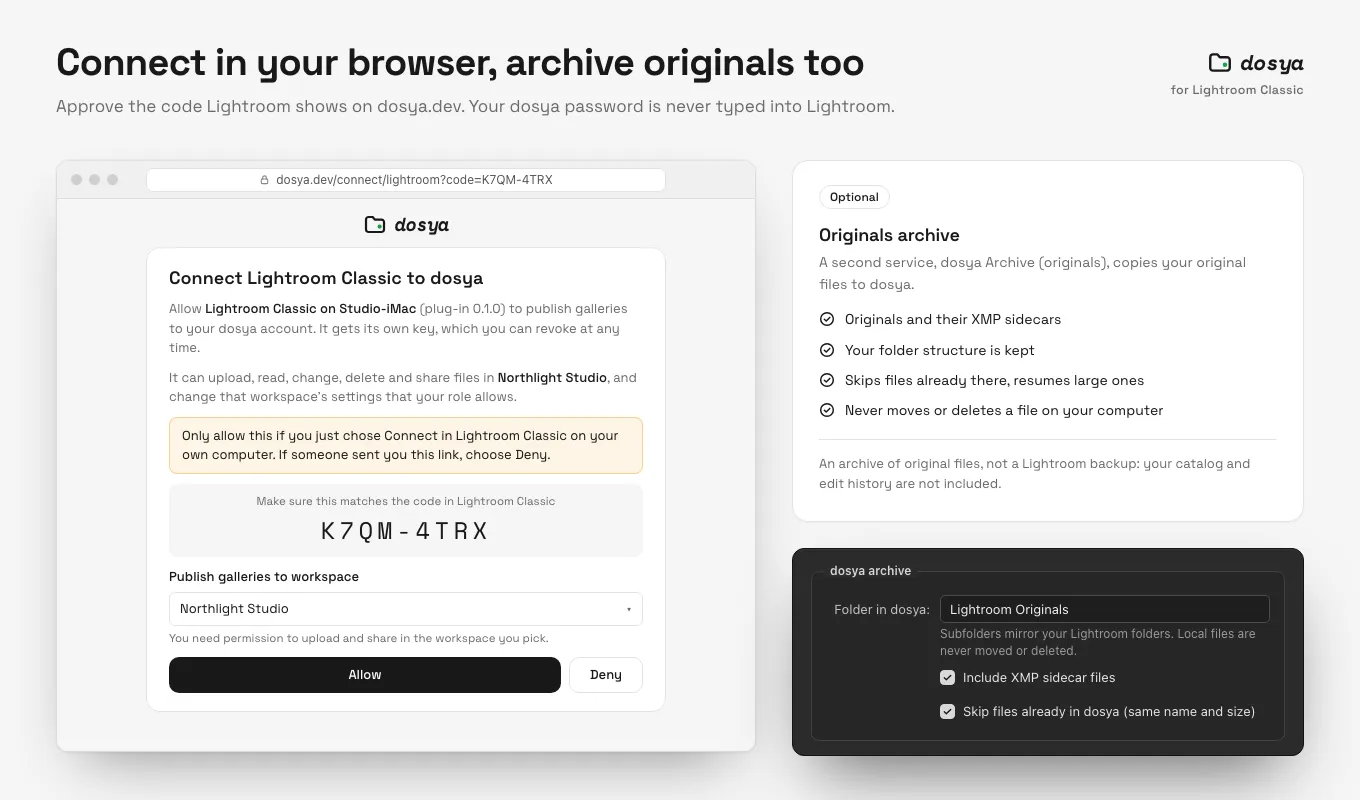
If you edit in Lightroom Classic, step 3 can happen from inside the catalogue. Our Lightroom Classic plug-in has an optional Originals archive that copies RAW files and their XMP sidecars to dosya.dev, mirrors your folder structure, skips files already uploaded and resumes large ones. It is an archive of originals, not a catalogue backup, so keep backing up the catalogue separately. Phone shots can follow the same route with automatic camera backup in the mobile app.
Delivery is a separate job
It is tempting to buy storage and delivery as one decision, but they answer different questions. Storage asks “where do my files live safely?” Delivery asks “how does the client get the right files, at full quality, without friction?”
Keep a dedicated delivery folder per client so the share link points at exactly what they should receive, and nothing else. The details of proofing versus finals, link expiry and passwords are in our client gallery delivery workflow.
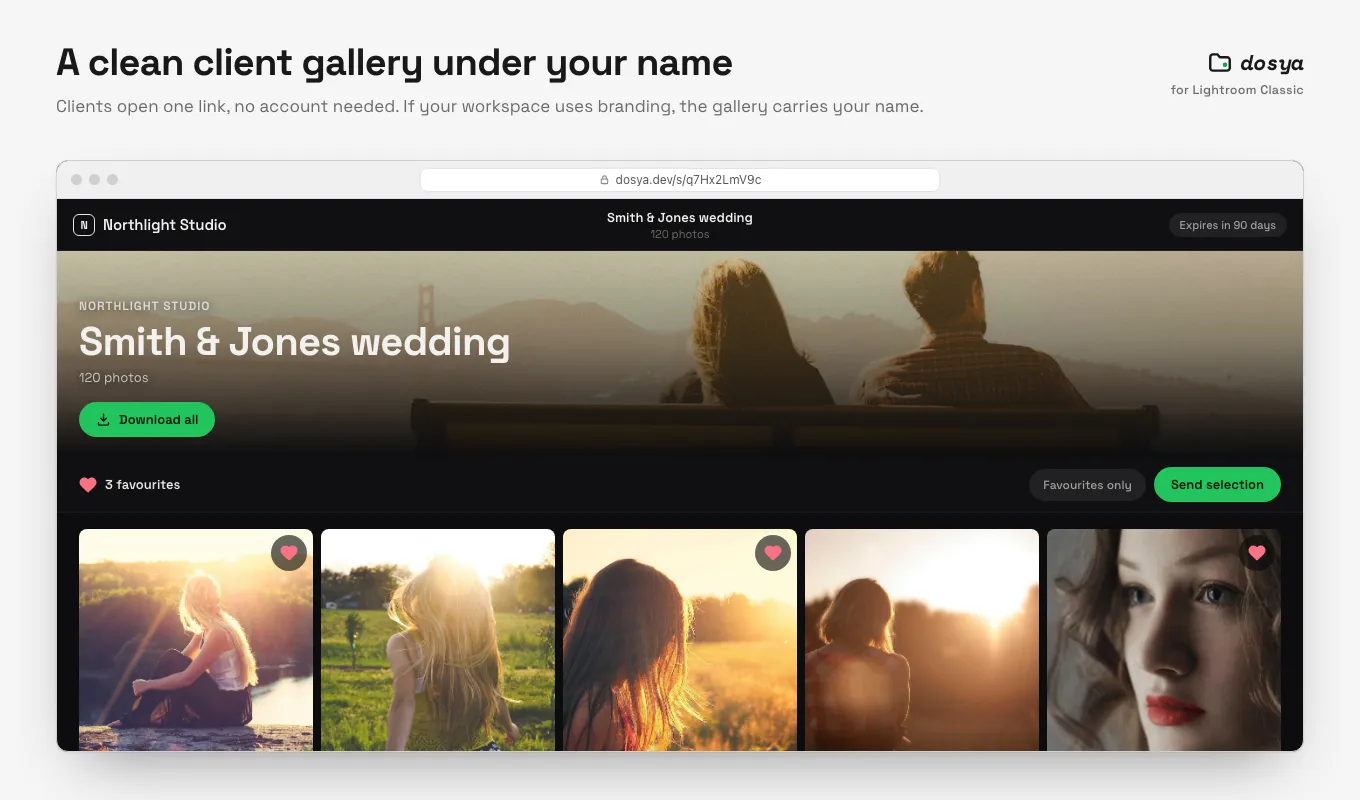
Lightroom Classic users can skip the manual upload entirely: publish a collection with the dosya.dev plug-in and it becomes a client gallery with its own link, password and expiry. Clients mark favourites without an account, and their picks sync back into Lightroom.
What to check before you pick a plan
When you compare providers, test them against your own numbers:
- Does the plan fit your year-one total with headroom? A plan you outgrow in March is a migration in April.
- Is there a per-file size limit? Large TIFFs and panoramas run into these. On dosya.dev, no plan limits individual file size; a file is bounded only by your remaining storage.
- Do uploads resume? A 60 GB ingest over a home connection will be interrupted at some point. Resumable uploads mean the interruption costs minutes, not the whole transfer. More on that in why large uploads fail.
- Can you add space without changing plan? Growth is uneven. On our pricing page you can see storage add-ons on any paid plan, which is often cheaper than jumping a tier for one busy season.
- Does delivery preserve the originals? Some services recompress images or strip metadata on the way out. Check what a recipient actually downloads.
The short version
Measure one real shoot. Separate originals, working files and exports. Multiply by a year, add your archive and a third for headroom. Then give the originals an off-site home and keep delivery in its own folders. The number you end up with is yours, not an industry average, and that is what makes the plan last.
Frequently asked questions
How much cloud storage does a photographer need?
Measure one typical shoot, including RAW originals, sidecars and exports, then multiply by the number of shoots you expect in a year. Add the archive you already hold and leave headroom of around a third. For many working photographers the answer lands between a few hundred gigabytes and a few terabytes a year.
Should photographers keep RAW files in the cloud?
Yes, if the cloud copy is one of several. RAW originals are the one part of a shoot you cannot recreate, so they deserve an off-site copy. Keep the working catalogue on a fast local drive and treat the cloud as the off-site and delivery layer.
Is syncing a photo folder the same as backing it up?
No. Sync mirrors changes, including deletions and overwrites, to every connected copy. A backup keeps an independent copy you can restore from after a mistake. Use sync for convenience and make sure a separate backup with version history exists as well.