Video is where storage plans get tested. A single shoot can produce hundreds of gigabytes, editing software wants fast access to every frame, and clients expect review links the same day. Putting “all of it in the cloud” does not work, and neither does keeping all of it on one drive under the desk.
The answer is to treat each kind of file differently, because they have different needs for speed, safety and sharing.
The five layers of a video project
Camera originals. The footage straight from the cards, plus audio from separate recorders. Irreplaceable and usually the largest part of the project.
Proxies and caches. Lightweight versions and render files your editor creates for smooth playback. Useful while editing, regenerable at any time.
Project files. The edit itself: timelines, project databases, graphics, music and sound design. Small in size, enormous in value.
Review exports. Compressed versions for client feedback. Short-lived and replaceable.
Masters. The final deliverables at full quality. Important, sometimes large, and the thing clients come back for.
What belongs locally
Anything your editing software reads constantly should be on fast local storage: an internal SSD or a fast external drive. That means the footage you are actively cutting, plus proxies and caches.
Editing from a mounted cloud drive sounds convenient, but scrubbing a timeline means many small, random reads, and those depend on your connection and latency. Some workflows make it usable with proxies; many do not. If you want to try it, test with your own software and footage before committing a real project to it. Mounting does work well for browsing and pulling archived projects; our guides to mounting on macOS and Windows use WebDAV, which dosya.dev offers on every plan.
What belongs in the cloud
The cloud is excellent at the jobs local drives are bad at: surviving disasters, being reachable from anywhere, and sharing.
- An off-site copy of camera originals, uploaded soon after ingest. If the edit drive fails or the studio floods, the footage survives.
- Project files, backed up frequently. They are small, so this is cheap, and losing a week of timeline decisions hurts more than losing a day of footage.
- Review exports, shared with clients by link.
- Masters, delivered and kept for as long as your agreement says.
- Finished projects, moved off local drives once the job is closed.
Proxies and render caches generally do not need cloud space. If they are lost, your editor rebuilds them.
A folder structure that supports this
Keep the same structure on your local drive and in cloud storage, so moving a project between them is a copy, not a reorganisation.
2026-11 Harbour Physio brand film/
  01-footage/
    A-cam/
    B-cam/
    audio/
  02-project/
  03-graphics-music/
  04-review/
  05-masters/
  proxies/   (local only)
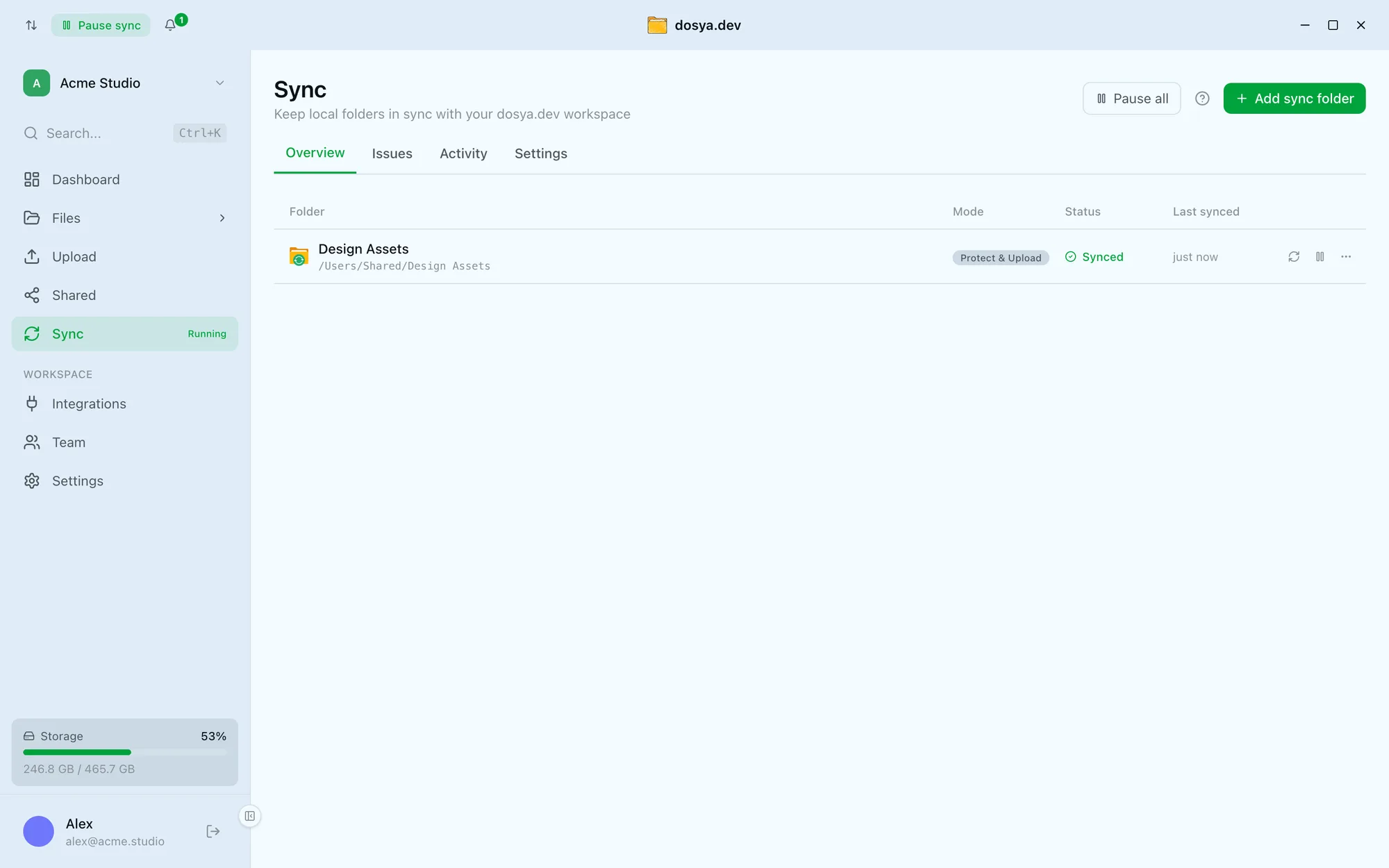
Keeping proxies in a clearly named local-only folder means a sync or backup rule can skip them. If you use a desktop app that syncs folders, exclude that folder from sync. On dosya.dev the desktop app supports folder exclusions for exactly this kind of case.
Estimate a realistic footprint
Measure one representative project rather than guessing. As a purely illustrative example: 600 GB of camera originals, 4 GB of project files, 20 GB of graphics and music, 10 GB of review exports and 60 GB of masters. The cloud footprint, skipping proxies, is about 700 GB per project.
Cloud footprint of one example project (GB)
Show as a table
| Item | GB |
|---|---|
| Camera originals | 600 GB |
| Masters | 60 GB |
| Graphics and music | 20 GB |
| Review exports | 10 GB |
| Project files | 4 GB |
At ten such projects a year, that is roughly 7 TB of new material, before your existing archive. That number will drive your choice of plan more than anything else. It also shows where to save: originals dominate, so decide early how long you keep footage from closed projects, and agree it with clients in writing. Our general guide to sizing cloud storage covers the same arithmetic for other files.
Uploading large footage reliably
Hundreds of gigabytes over a typical office connection takes hours. Plan for interruptions rather than hoping there are none:
- Use an uploader that resumes. A chunked upload that picks up where it stopped turns a dropped connection into a short delay rather than a restart. More on why in why large uploads fail.
- Upload overnight and keep the machine awake.
- Use a transfer tool for the archive run. Moving finished projects off the edit drive is a good job for rclone, which copies whole trees, retries failures and can verify what arrived.
- Check for per-file limits. Long single-take recordings make very large files. On dosya.dev, no plan caps individual file size; the only bound is your remaining storage.
Review copies and masters are different deliveries
Clients often confuse the two, and that causes real problems: a compressed review copy ends up on a broadcaster’s server, or a full master gets sent for a quick opinion.
Name them so the difference is obvious - REVIEW and MASTER in the
filename is enough - and share them separately. A review link can be short
lived and view-friendly. A master link should deliver the original file
untouched and stay alive long enough for the client to download it. Our
guide to sending large video files without losing
quality covers the master delivery in detail,
and the video project handoff checklist
covers passing a whole edit to another editor.
Archive when the job closes
When a project is delivered and paid, decide what stays:
- Masters and project files: keep.
- Camera originals: keep for as long as you agreed, then decide.
- Proxies, caches and review exports: delete.
Then move the project off your edit drive. Your next project gets fast local space, and the finished one sits safely in the cloud, ready if the client asks for a recut.
The short version: edit locally, protect and share in the cloud, and let proxies stay disposable.
Frequently asked questions
Can I edit video directly from cloud storage?
It is rarely a good idea for footage. Editing needs fast, consistent reads, and a mounted cloud drive depends on your connection. Keep active footage on a fast local or attached drive, and use the cloud for project files, review copies, handoffs and archive.
What should video editors store in the cloud?
An off-site copy of camera originals, the project and edit files, review exports for clients, final masters, and finished projects once they move to archive. Proxies and render caches can usually be regenerated and do not need cloud space.
How much storage does a video project need?
Measure a typical project: camera originals, proxies, project and audio files, and exports. Originals usually dominate. Multiply by the projects you expect in a year and add headroom for higher resolutions and longer shoots.