Uploading one 10 GB file and uploading ten thousand 1 MB files move roughly the same amount of data. They do not take the same time, and they do not fail in the same ways. If you have ever watched a progress bar crawl through a folder of small files, this is why, and here is how to choose between uploading the folder directly and packing it into a ZIP first.
File count is its own cost
Every file in an upload costs more than its bytes. Something has to start the transfer, record the file’s name and place in the folder tree, store it, and confirm it arrived. For a large file that overhead is a rounding error. For a tiny file it can take longer than the data itself.
So when you estimate an upload, look at two numbers:
- Total size, which is bound by your connection’s upload speed.
- File count, which adds a fixed cost per file regardless of size.
A folder of 40,000 small files - a website export, a dataset, a photo library with thumbnails - can take far longer than its total size suggests. That is not a fault; it is how per-file work adds up.
Option one: upload the folder as it is
Uploading the folder directly keeps its structure intact in your storage. Every file is individually visible, searchable, previewable and shareable.
Choose this when:
- People will browse the folder or open individual files later.
- You want previews, comments or version history on individual files.
- The folder will keep changing, and you will add to it over time.
- Recipients might need only part of it.
In a browser, use a “select folder” option rather than dragging thousands of files individually; that keeps the subfolder structure. On dosya.dev the uploader has a Select folder button and shows the queue as a tree, so you can see which part of the structure is still in progress. For very large or ongoing folders, a desktop app that syncs the folder in the background is usually more comfortable than keeping a browser tab open.
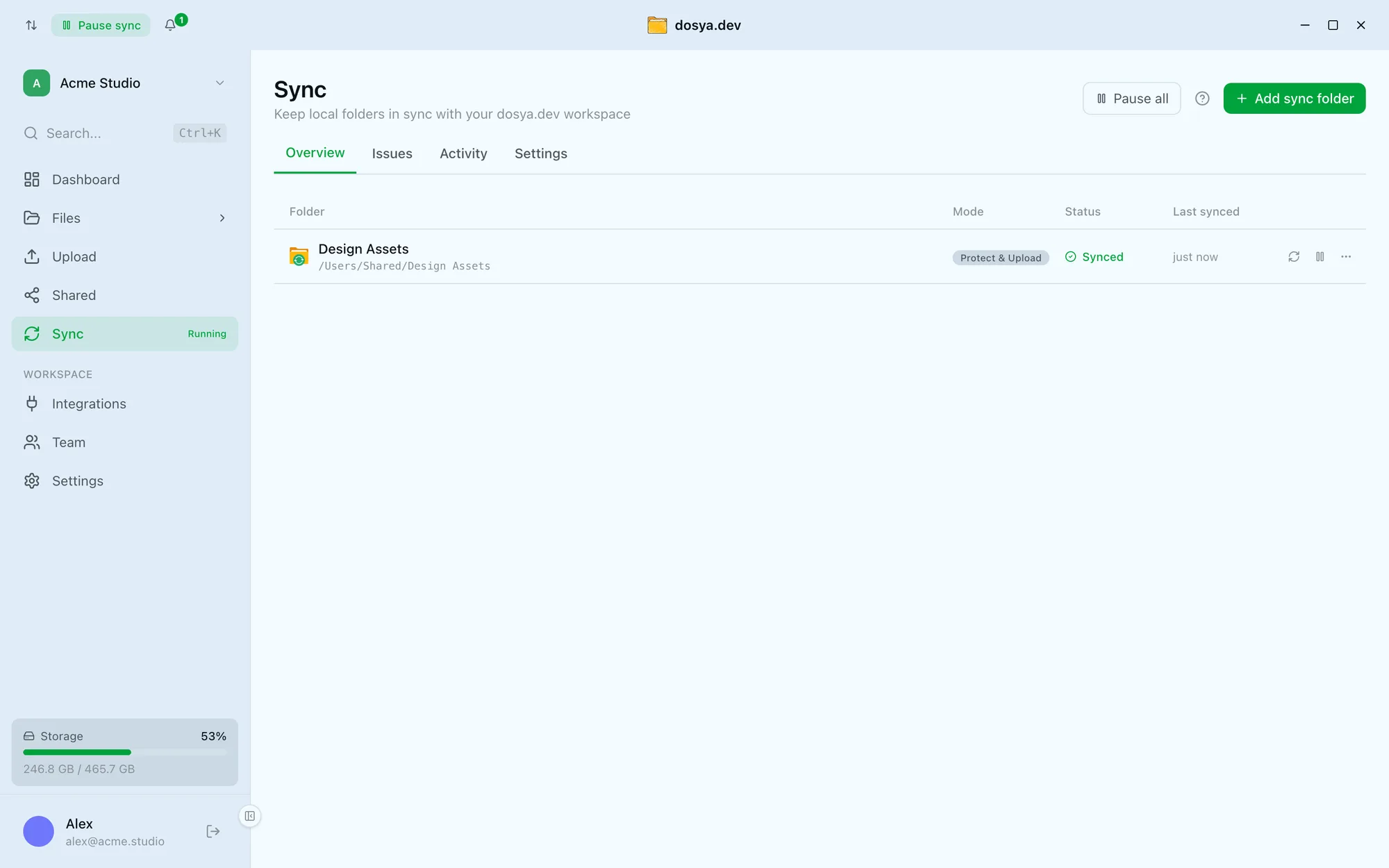
For the largest jobs, a command-line tool is the most robust option of all. rclone copies whole directory trees, runs several transfers in parallel, and can be re-run to send only what is missing; the dosya CLI is there too if you prefer a dedicated tool. If the folder is sitting in Google Drive rather than on your computer, the Google Drive import moves it across with its structure intact and nothing to download first.
Option two: ZIP it first
A ZIP turns thousands of files into one. The upload then pays the per-file cost once.
Choose this when:
- The folder is a unit that will only ever be used whole, such as an archive, a project backup or a build output.
- Nobody needs to preview or pick individual files from storage.
- The file count is so large that per-file overhead dominates.
- You are handing the folder to a system that expects a single archive.
Two caveats. First, a ZIP is not necessarily smaller. Photos, video and audio are already compressed; zipping them barely changes the size. Text, documents and raw data compress much better. Second, a ZIP is all or nothing for the recipient. To get one file out, they download the whole archive, and a damaged archive can take many files with it.
A middle path
You do not have to choose one approach for everything. Common hybrids:
- ZIP the noisy parts, keep the rest browsable. A design project might
keep its deliverables as files but zip a
node_modulesstyle dependency folder or a cache of thousands of tiny assets. - ZIP per subfolder. One archive per month, per shoot or per batch keeps each archive a manageable size and lets recipients take only what they need.
- Upload the folder, let the recipient choose. Some share pages can produce a ZIP on request. On dosya.dev, a folder share link lets the recipient download individual files or the whole folder as one archive, for archives of up to 10,000 files and 5 GB. Above that, recipients download in parts or use a sync client.
Make the upload survive interruptions
Large uploads get interrupted: a laptop sleeps, Wi-Fi drops, a tab gets closed. What happens next depends on the tool.
With a folder upload, files that finished stay finished, and only the remaining ones need retrying. With a single huge ZIP, the risk sits on one file, so you want an uploader that sends it in chunks and can resume. We explain the mechanics in why large uploads fail, and how resumable transfers fix it.
Practical precautions for either approach:
- Plug the laptop in and turn off sleep for the duration.
- Prefer a wired connection or stay near the router.
- Check you have enough storage before you start, not halfway through.
Check that everything arrived
The step most people skip is checking the result. Do it while you still have the source.
- Compare file counts. Your operating system can count the files in the source folder; compare it to the count in storage.
- Compare total size. Small differences can come from how systems round sizes, but a large gap means something is missing.
- Spot-check the structure. Open a few deep subfolders and confirm they look the same.
- For a ZIP, test the archive. Download it once and open it, or verify a checksum. Our checksums guide shows how.
Also watch for files that never leave the source: hidden system files, very long paths, or names with characters some systems reject. If counts differ, these are the usual suspects.
The quick decision
- People will browse or pick individual files: upload the folder.
- It is one unit used whole: ZIP it.
- It is huge and mixed: ZIP the noisy parts, or one ZIP per subfolder.
- It keeps changing: sync it with a desktop app.
Whichever you pick, check counts and sizes before deleting the source. That habit is worth more than any setting.
Frequently asked questions
Why is uploading many small files so slow?
Each file carries its own overhead: a request to start it, metadata to record, and a confirmation at the end. With thousands of small files that fixed cost per file adds up, so the total time depends on the file count as well as the total size.
Should I zip a folder before uploading it?
Zip it if the recipient needs the folder as one unit, such as an archive or a software build, or if the file count is enormous. Upload the folder as it is if people will browse, preview or download individual files later.
Does zipping make files smaller?
Only if the files compress well. Text, documents and some raw data shrink. Photos, videos and audio are already compressed, so zipping them barely changes the size.