Most of the time, nobody needs your RAW files. A client wants finished images, a website wants a JPEG at the right size, and a print lab wants a high-quality export. But there are real cases where the original has to travel: a retoucher finishing the edit, a second shooter pooling files, an agency that contracted the originals, a colleague taking over a job.
When that happens, a RAW handoff goes wrong in predictable ways. Here is how to avoid each of them.
First, decide whether RAW is really needed
Before you upload 40 GB, ask what the recipient will do with the files.
Send JPEG or TIFF exports when the recipient is going to publish, print or approve. They get your edit, at the size they need, in a format every device opens.
Send RAW originals when the recipient will make editing decisions you are not making: retouching, colour grading to a house style, compositing, or archiving under a contract that specifies originals.
If you are unsure, ask. “Do you need the RAW files, or full-resolution
exports?” saves a large upload and an awkward conversation about why the
client cannot open a .CR3 file.
Package the files properly
A RAW handoff is more than the RAW files.
Include the sidecars. Lightroom, Capture One and others keep edits in
a catalogue or in sidecar files such as .xmp. Without them, the recipient
opens the untouched capture and wonders what happened to your crop. If you
use a catalogue, write metadata to XMP before you export the folder.
Keep the original filenames. Renaming RAW files breaks the link to their sidecars and to any selection list you have already agreed. If you need a client-friendly order, add a prefix rather than replacing the name.
Add a short readme. One text file that says which camera, how many files, which ones are selects and what software you used. It turns a folder of cryptic names into something another person can pick up.
If you work in Lightroom Classic, the dosya.dev plug-in can do this packaging for you: its Originals archive copies RAW files with their XMP sidecars and keeps the folder structure, so the sidecars are never forgotten.
Name the folder for the job, not the date you sent it.
2026-10 Harper wedding - RAW selects for retouch tells everyone what it is
in a year’s time.
Do not zip unless you have a reason
RAW files are already compressed, so zipping a folder of them barely changes the size. What it does change is the experience: the recipient has to download everything before seeing anything, and a failure near the end means starting again.
Sharing the folder itself lets the recipient browse, download a subset, or take the lot. If they prefer one file, a good share page can produce a ZIP on request. On dosya.dev, recipients of a folder link can download everything as a single archive or pick files individually.
Upload once, share as a link
Email is not an option at this size; most providers refuse attachments above roughly 25 MB. Messaging apps recompress images. Transfer sites work, but the link expires on their schedule and re-sending means re-uploading.
The more durable pattern is to upload the folder to your own storage and share a link to it:
- Upload the job folder, sidecars included. If the connection drops, a resumable upload carries on from where it stopped. For very large handoffs, a command-line tool such as rclone can copy the folder and retry failed files on its own.
- Create a share link for that folder only.
- Set an expiry that matches the job. A retoucher needs a few weeks, not forever.
- Add a password for anything under contract or not yet public, and send it through a different channel from the link.
Our share links support folder links with a password, expiry and download limit, and you can revoke one at any time.
Check that originals arrive as originals
This step catches most of the problems before the recipient finds them.
Open the link in a signed-out browser and look at it as the recipient will. Is the right folder there? Are the sidecars included?
Download one file and compare it. The downloaded RAW should be the same size, to the byte, as your local copy. For a stronger check, compare checksums; our guide to checksums shows how on every operating system.
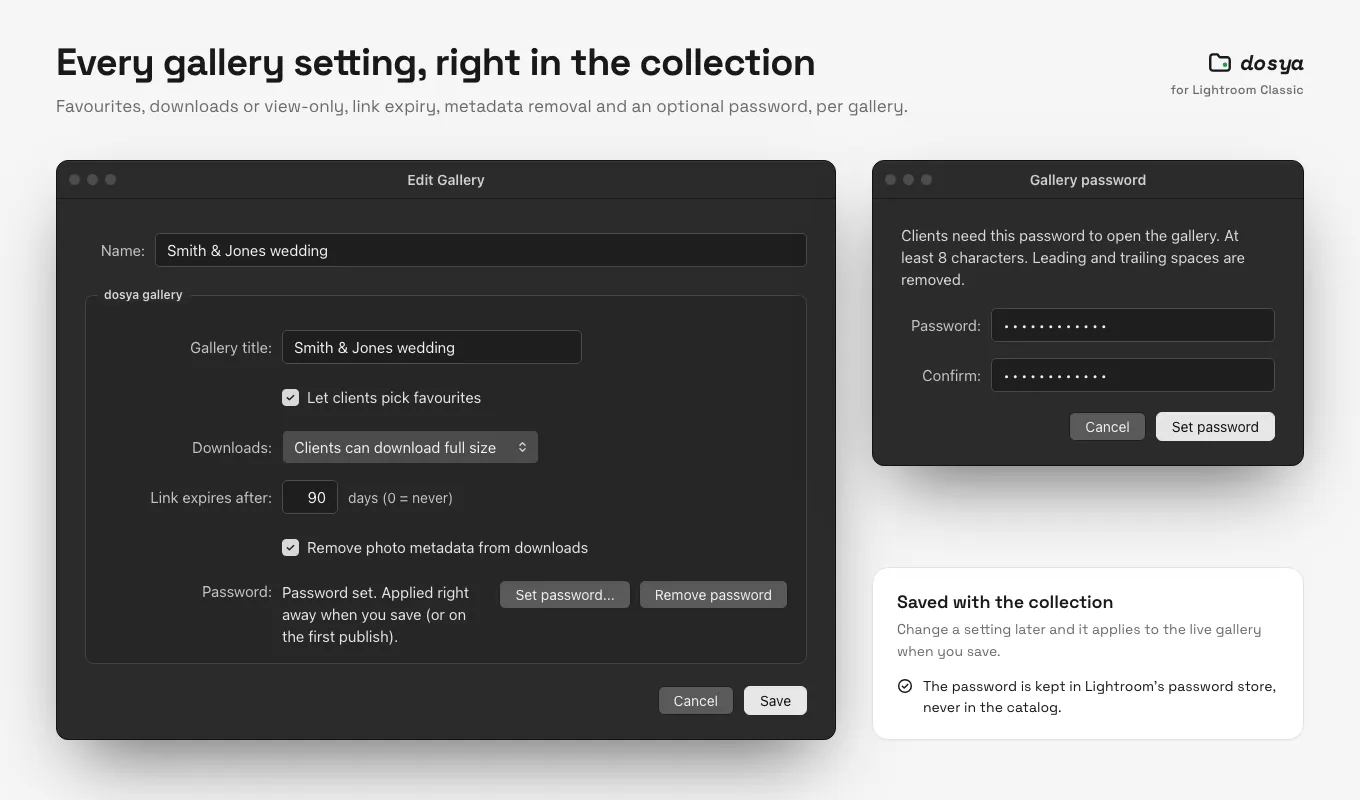
Watch for metadata options. Some sharing tools offer to strip photo metadata for privacy, which is the right call for a public gallery and the wrong one for a retoucher who needs the capture data. If your link has a “remove photo metadata” option, leave it off for RAW handoffs. Our post on what EXIF data reveals explains when stripping matters.
Be honest about previews
A browser can preview a JPEG instantly. RAW is different: every camera maker uses its own format, and many web tools cannot render them. On dosya.dev, RAW files show as a download card rather than an in-browser preview, which is common across storage services.
So if the recipient needs to choose images before downloading, give them something to look at. Include a folder of small JPEG previews alongside the RAW files, with matching filenames. They browse the previews, then download only the originals they need.
Working with clients versus editors
The handoff differs depending on who receives it.
Clients generally want a polished experience: finished images, a clear gallery, and as few decisions as possible. The proofing and delivery flow in our photographer gallery guide is built for them, and the Lightroom Classic plug-in turns a published collection into that gallery directly.
Editors and collaborators want completeness: every file, every sidecar, the readme, and a link that stays alive while they work. Give them a folder link with a sensible expiry and agree in writing which files come back to you and in what format.
A quick checklist
- Confirm the recipient actually needs RAW.
- Write edits to XMP, keep original filenames, add a readme.
- Upload the folder, not a ZIP.
- Share a folder link with an expiry, and a password where it matters.
- Test from a signed-out browser and verify one file’s size or checksum.
- Include JPEG previews if the recipient needs to choose first.
Five minutes of preparation is a lot cheaper than a second 40 GB upload.
Frequently asked questions
How do I send RAW photo files to someone?
Put the RAW files and their sidecar files in one clearly named folder, upload it to storage you control, and share the folder with a link. Avoid email and messaging apps, which either refuse files this size or compress images on the way.
Should I send clients RAW files or JPEGs?
Most clients need finished JPEG exports. RAW files make sense for retouchers, other photographers or agencies that will edit the images themselves, and only when your agreement covers handing over originals.
Do RAW files keep their edits when I share them?
Not inside the RAW file itself. Lightroom and similar editors store edits in a catalogue or in sidecar files such as XMP. Send the sidecars alongside the RAW files, or the recipient sees the untouched original.