After any wedding, party, reunion or conference, the best photos are spread across a hundred phones. A few arrive in a group chat, compressed to a fraction of their quality. Some get posted to social media. Most never leave the phone they were taken on.
Collecting them properly is simple if you set it up before the event: one upload link, one folder, and clear instructions.
Why group chats and social media fall short
They compress. Most messaging apps shrink photos and re-encode videos to save bandwidth. Fine for a quick look, disappointing for a print or an album.
They scatter. Photos arrive across days of messages, mixed with conversation, with no easy way to save them all at once.
They strip context. Original capture dates and times often get lost, which makes sorting the day into order much harder. (If location data is a concern for you, our post on what EXIF data reveals is worth a read before sharing photos publicly.)
They are not yours. The collection lives in someone else’s app, under their settings, until somebody leaves the group.
The upload link approach
An upload link, sometimes called a file request, is a web address that lets anyone put files into a folder you choose. Guests do not need an account or an app. They open the link, tap to choose photos and videos, and upload.
What makes it work well for events:
- Full quality. Files arrive as the phone saved them.
- One place. Everything lands in the event’s folder.
- Private by default. Each guest sees their own uploads, not the rest of the collection.
- Closes when you want. Set a deadline a couple of weeks after the event.
On dosya.dev this is a file request, and it works in an ordinary mobile browser.
Setting it up
1. Create a folder for the event.
2026-11 Ava and Sam wedding/guest-uploads is better than Photos, because
you will have more events.
2. Create the upload link pointing at that folder.
3. Write guest-friendly instructions into the request message. Keep it short:
Thanks for celebrating with us! Please add your photos and videos here. Tap “Choose files”, select as many as you like and wait for the upload to finish before closing the page. No app or account needed.
4. Ask for a name. Guests can leave their name or email when they upload. Turning on “put each uploader in their own folder” gives every guest a separate subfolder named after them (or their email, if they leave no name), which makes it easy to thank people and to find the photos of a particular table later.
5. Set a deadline. Two to three weeks after the event catches the people who only open their camera roll once they are home.
6. Test it from a phone before sharing. Open the link signed out, upload a couple of photos and one video, and check they arrive.
Sharing the link with guests
Make it impossible to miss:
- A QR code on table cards, the welcome sign or the back of the order of service. Any QR generator can turn the link into a code; print it large.
- On the invitation or event website, for guests who want to upload beforehand, such as old photos for a slideshow.
- A message the day after, while everyone is still looking at their photos.
One link everywhere. If you create several, half the photos end up in the wrong place.
A note on videos and large uploads
Phone videos are large, and venue Wi-Fi is often busy. Encourage guests to upload when they are home on Wi-Fi, and mention that long videos may take a few minutes. An uploader that sends files in chunks copes better with patchy mobile connections, because a dropped signal does not mean starting again.
Make sure your storage has room. A few hundred guests with a dozen photos and a video each can add up to tens of gigabytes. Check before the event, not when uploads start failing.
After the event
When the deadline passes:
-
Review the collection. Remove duplicates, accidental screenshots and anything a guest asked you to take down. Our guide to finding duplicate files helps with the first one.
-
Sort it. Capture dates make a timeline easy to build.
-
Share the best of it. Create a separate share link to a curated folder for guests to browse and download. Keep this separate from the upload folder, so private uploads stay private until you have chosen what to share.
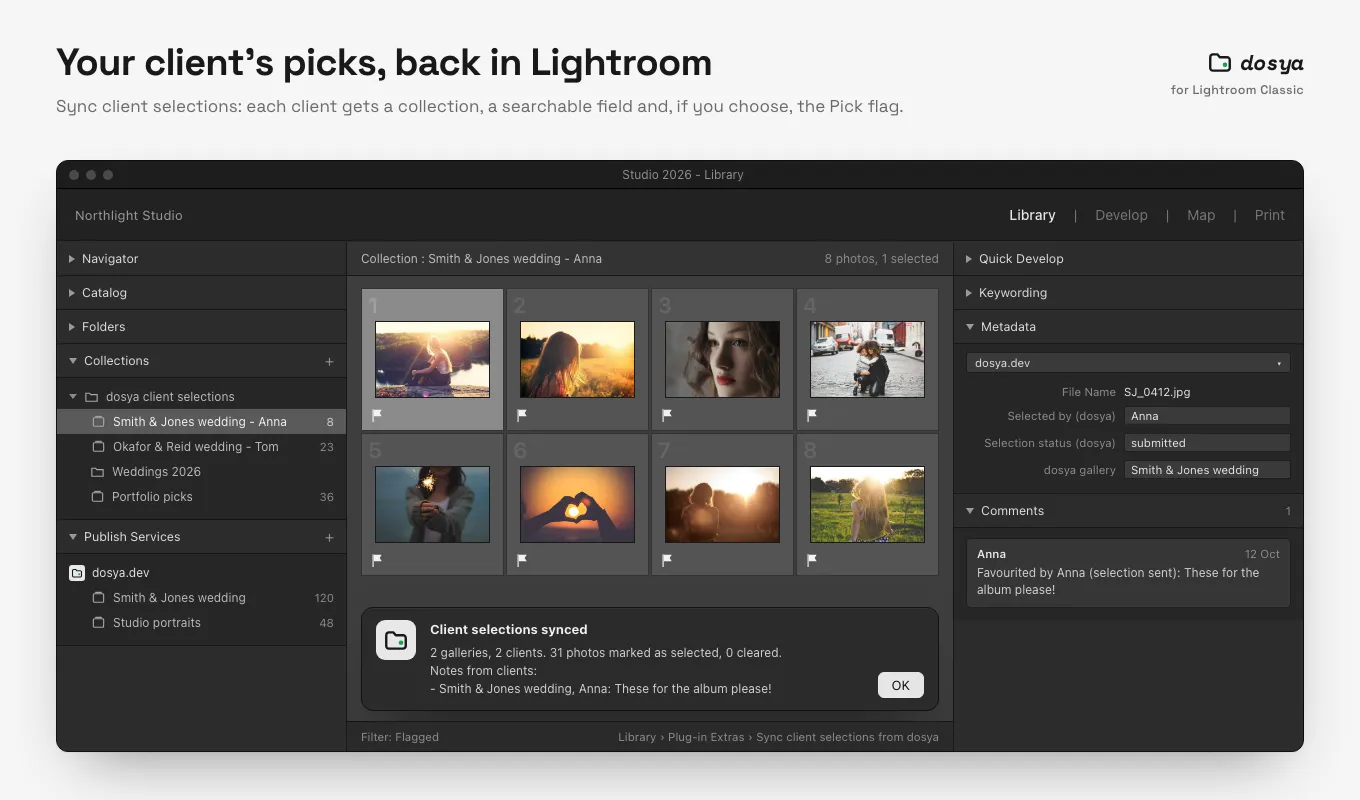
If you are the event photographer and edit in Lightroom Classic, the dosya.dev plug-in publishes a collection as a gallery where the couple or organiser marks favourites, and their picks sync back into your catalogue.
Beyond weddings
The same setup works for any event where many people take photos: school trips, conferences, sports days, team offsites, community festivals. For recurring events, keep one folder per occasion and a fresh link each time.
If you also collect files from clients for work, our guide to receiving files from clients covers the business version of the same idea, and the client file upload checklist helps you ask for the right things the first time.
One link, set up before the day, and every guest’s view of the event ends up in one place.
Frequently asked questions
How do I collect photos from all my wedding or party guests?
Create one upload link that points at a folder for the event and share it on the invitation, a table card or a QR code. Guests open it on their phone, pick photos and videos, and upload them at full quality without installing anything or creating an account.
Can guests see each other's photos when they upload?
With a private upload link, no. Each guest sees only what they uploaded. If you want everyone to see the collection afterwards, share a separate gallery link once you have reviewed the photos.
Why not use a group chat to collect event photos?
Messaging apps usually compress photos and videos, lose the original dates and locations, and scatter the files across hundreds of messages. An upload link collects the originals in one folder you control.